
Quick Form Builder: Create Forms in Minutes
Create professional forms in minutes with Formfy's Quick Form Builder. Toggle fields, add questions, publish. No design skills needed.
Formfy Team
Product Team
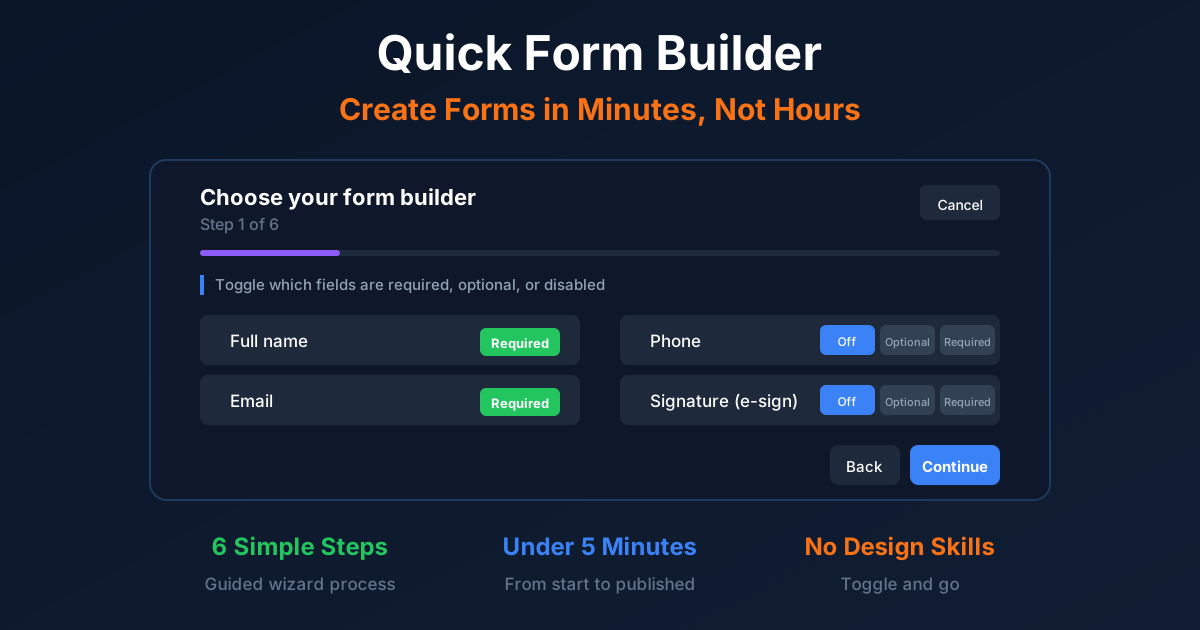
Building forms doesn't have to mean staring at a blank canvas, wondering where to start. For most businesses, the forms you need — contact forms, registration forms, intake forms, waivers — follow common patterns. Why reinvent the wheel every time?
That's exactly why we built the Quick Form Builder. Instead of dragging and dropping individual fields, you simply toggle on the fields you need, add any custom questions, and you're done. The entire process takes under 5 minutes.
What Is the Quick Form Builder?
The Quick Form Builder is a 6-step guided wizard that walks you through creating professional forms. Instead of starting with a blank canvas and building from scratch, you toggle common fields on or off and add custom questions as needed. No design skills required, no complex decisions to make.
Think of it like ordering at a restaurant with a preset menu. The most common ingredients are already available — you just choose what you want on your plate. For most forms, this is faster and easier than building everything from scratch.
Key features of the Quick Form Builder:
- 6-step guided process — Clear progress, no confusion
- Pre-defined common fields — Name, email, phone, signature, and more
- Three field states — Off, Optional, or Required for each field
- Custom questions — Add up to 10 of your own questions
- Multiple answer types — Small text, large text, or multiple choice
- Instant publishing — Share your form immediately when done
How the Quick Form Builder Works
Step 1: Toggle Standard Fields
The wizard presents you with the most commonly used form fields. These are the same fields available for every form — the building blocks that cover 90% of what businesses need to collect.
Available standard fields:
| Field | Description | Default State |
|---|---|---|
| Full name | Respondent's complete name | Required |
| Email address for follow-up | Required | |
| Phone | Contact phone number | Off |
| Address | Full mailing address | Off |
| Date of birth | Birthday/age verification | Off |
| Date/Time | Appointment or event date | Off |
| Static text block | Instructions or disclaimers | Off |
| Checkboxes | Multi-select options | Off |
| Consent | Agreement checkbox | Off |
| Signature | E-signature capture | Off |
| File upload | Document/image uploads | Off |
For each field, you choose one of three states:
- Off — Field won't appear on your form
- Optional — Field appears but isn't required
- Required — Field must be completed to submit
That's it. No configuring field widths, no positioning, no styling decisions. Toggle what you need and move on.
Step 2: Add Custom Questions (Optional)
Standard fields cover most needs, but sometimes you need to ask something specific. The Quick Form Builder lets you add up to 10 custom questions.
For each custom question, you:
- Write your question text — "What services are you interested in?"
- Set as Required or Optional — Must they answer?
- Choose the answer type:
- Small text box — For short answers (names, numbers, brief responses)
- Large text box — For detailed responses (descriptions, feedback, explanations)
- Multiple choice — Select from options you define
If you don't need custom questions, simply skip this step. Many forms work perfectly with just the standard fields.
Steps 3-6: Configure and Publish
The remaining steps let you:
- Set up email notifications for new submissions
- Customize your form's appearance
- Configure submission settings
- Publish and get your shareable link
Each step is straightforward with sensible defaults. Most users click through in under a minute.
The Quick Form Builder Workflow

Why Use the Quick Form Builder?
Speed
Traditional form builders require you to:
- Find the field type you need
- Drag it onto the canvas
- Position it correctly
- Configure its settings
- Repeat for every field
The Quick Form Builder eliminates all of this. Toggle on what you need, toggle off what you don't. A form that takes 30 minutes to build with drag-and-drop takes 5 minutes with the wizard.
Simplicity
No design decisions means no decision fatigue. You don't have to think about:
- Field widths and layouts
- Spacing and alignment
- Color schemes and styling
- Mobile responsiveness
The wizard handles all of this automatically. Your forms look professional without any design effort.
Flexibility
While the process is simple, you're not limited:
- Standard fields cover the most common needs
- Custom questions let you collect specific information
- Three answer types give you flexibility in how people respond
For 80% of forms, the Quick Form Builder gives you everything you need.
No Learning Curve
Anyone can use the Quick Form Builder immediately:
- No tutorials needed
- No documentation to read
- No trial and error
If you can toggle a switch and type a question, you can build a professional form.
Best Use Cases for Quick Form Builder
Contact Forms
Toggle on:
- Full name (Required)
- Email (Required)
- Phone (Optional)
Custom question:
- "How can we help you?" (Large text box, Required)
Total fields: 4 Time to create: 2 minutes
Event Registration
Toggle on:
- Full name (Required)
- Email (Required)
- Phone (Required)
- Date/Time (Optional)
Custom questions:
- "Dietary requirements?" (Small text box, Optional)
- "T-shirt size?" (Multiple choice, Required)
- "How did you hear about this event?" (Multiple choice, Optional)
Total fields: 7 Time to create: 4 minutes
Client Intake Forms
Toggle on:
- Full name (Required)
- Email (Required)
- Phone (Required)
- Address (Required)
- Date of birth (Optional)
Custom questions:
- "What brings you in today?" (Large text box, Required)
- "Have you worked with us before?" (Multiple choice, Required)
- "Preferred contact method?" (Multiple choice, Optional)
Total fields: 8 Time to create: 5 minutes
Simple Waivers
Toggle on:
- Full name (Required)
- Email (Required)
- Consent (Required)
- Signature (Required)
Custom questions:
- "Emergency contact name and phone" (Small text box, Required)
- "Any medical conditions we should know about?" (Large text box, Optional)
Total fields: 6 Time to create: 3 minutes
Feedback Surveys
Toggle on:
- Full name (Optional)
- Email (Optional)
Custom questions:
- "How would you rate your experience?" (Multiple choice, Required)
- "What did we do well?" (Large text box, Optional)
- "What could we improve?" (Large text box, Optional)
- "Would you recommend us to others?" (Multiple choice, Required)
Total fields: 6 Time to create: 4 minutes
Quick Form Builder vs Canvas Builder
Formfy offers two ways to create forms. Here's when to use each:
| Feature | Quick Form Builder | Canvas Builder |
|---|---|---|
| Best for | Simple forms, fast creation | Complex layouts, precise control |
| Creation time | Under 5 minutes | 15-30 minutes |
| Learning curve | None | Some experience helpful |
| Custom layouts | No | Yes |
| Drag and drop | No | Yes |
| Field positioning | Automatic | Manual |
| Multi-column layouts | No | Yes |
| Multi-page forms | No | Yes |
Use Quick Form Builder when:
- You need a form quickly
- Standard fields meet your needs
- You want simplicity over customization
- You're creating common form types (contact, registration, feedback)
Use Canvas Builder when:
- You need precise layout control
- Your form needs multiple pages or a custom flow
- You want multi-column layouts
- You're building something unique or branded
Most users find that Quick Form Builder handles 80% of their form needs. Switch to Canvas Builder for the 20% that requires more customization.
Tips for Using Quick Form Builder Effectively
1. Start with the Defaults
Name and Email come pre-set as Required for good reason — you almost always need to know who submitted the form and how to reach them. Start with these defaults and only change them if you have a specific reason.
2. Less Is More
Every field you add is friction for the person filling out your form. Research shows that form completion rates drop significantly with each additional field. Only enable what you truly need.
Bad: Toggle on every field "just in case" Good: Toggle on only fields you'll actually use
3. Use Custom Questions Wisely
You have up to 10 custom questions — but that doesn't mean you should use all 10. Each question should serve a purpose:
- Will you use this information?
- Is it essential for this form?
- Could you collect it later instead?
4. Choose the Right Answer Type
- Small text box: Names, numbers, short phrases
- Large text box: Descriptions, feedback, detailed explanations
- Multiple choice: When you want specific, predictable answers
Using the wrong type frustrates users. Don't use a small text box when you're asking for detailed feedback.
5. Preview Before Publishing
Always preview your form before sharing it. Check that:
- Fields appear in a logical order
- Required fields make sense
- Custom questions are clear
- The form looks right on mobile
Getting Started with Quick Form Builder
Ready to create your first form? Here's exactly what to do:
- Log in to your Formfy dashboard
- Click "Create New Form"
- Select "Quick Form Builder"
- Toggle the fields you need (Step 1)
- Add custom questions if needed (Step 2)
- Configure notifications and settings (Steps 3-5)
- Publish and share your link (Step 6)
Total time: Under 5 minutes
Your form is immediately live and ready to collect responses. Share the link via email, embed it on your website, or post it on social media.
Common Questions About Quick Form Builder
Start Building Forms the Easy Way
The Quick Form Builder makes form creation simple. No blank canvases, no design decisions, no learning curve. Just toggle the fields you need, add your custom questions, and publish.
Most forms take under 5 minutes from start to finish. That's time you can spend on your actual business instead of fighting with form builders.
Related Articles
Formfy Team
Product Team
Related Articles

Digital Client Onboarding: Paperless Intake Forms Guide
Master digital client onboarding with paperless intake forms, e-signatures, and scheduling. Learn how to reduce onboarding time by 60% and boost retention.
Are Electronic Signatures Legally Binding? 2025 Guide
What makes e-signatures legally valid under ESIGN Act and UETA. Compliance requirements, audit trails, and court defensibility.